A training record: which cards each person has signed, and when. It does not measure speed, mistakes or how often anyone looked — it is not a performance score.
✓ signed ↻ card changed since · to do not on their card
Every work process in the shop, written the same way: why we do it, who does it, when, on which screen, the steps, how you know it is done, and what to do when it goes wrong. Written for Raphi and Leila, who train everyone else.
Screenshots build b1358Version draft 4 · 12.11.2026 · in Banco from build b1364Address today banco.wolfhold.appLanguage English, German screen labels in grey★ Six things for the wall
How to use this book
Each card starts folded: tap its title to open it, tap again to close. ▾ Open all at the top opens every card; a printout always shows them all. Each process has a number (P-01…). Use it when you talk about it: "we do P-06 at closing". The menu path comes first; the link under it opens that screen in a new tab, on the Banco you are signed in to. Inside Banco (⭐ Every day → 📖 Handbook) you see only the cards of your role: sign each one with ☐ I can do this once you have read it and done it with your trainer. Something wrong or missing on a card? Tap 💬 and name the card — "P-06, step 3".
✅ Checked A person read it, did it on the real screen, and gave it 👍 OK in the review strip. Trust it.
🤖 Walked A machine followed it click by click on the build shown. The buttons are right; whether it teaches is not yet known.
📝 Draft Written from the program code, not yet walked on a screen. The steps are right; a label may read slightly different.
⏳ Waiting on a decision The shop has not decided the rule yet. The page says what is open and who decides.
There is one cash box for the whole shop, not one per person. Whoever opens it, everyone sells into it, and whoever closes it counts it for everyone.
P-01
Open the shop — count the cash box in
Day🤖 Walked
Why
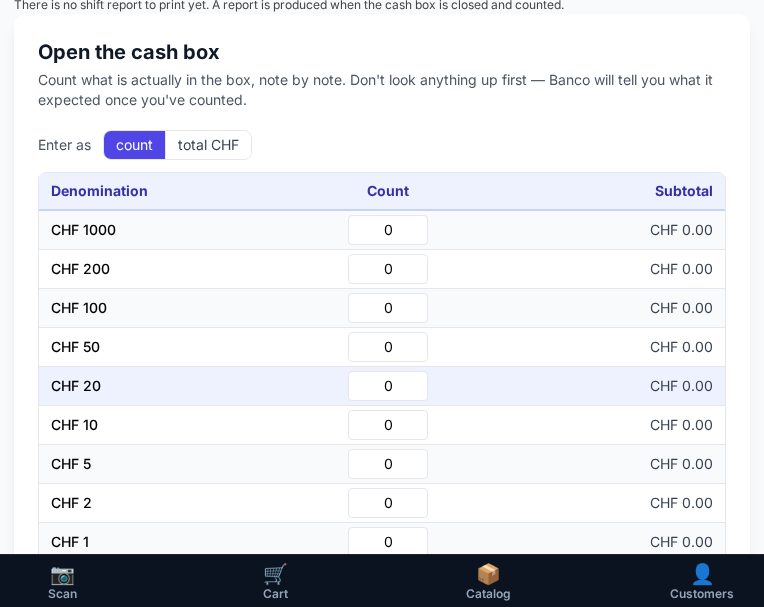
No cash sale is possible until the box is open. The morning count is the starting point every cash difference of the day is measured against. It is a blind count: the screen does not show what it expects, so you cannot type the expected figure back by accident.
Who
Anyone with a login: cashier, manager or admin. Usually the first person in.
When
Every trading morning, before the first customer.
Where
Dashboard → My Drawer · Open Shift(Meine Kasse · Schicht öffnen). The screen's heading reads 💰 Cash Box(Die Kasse) — same screen, two names.banco.wolfhold.app/pos/shift ↗
Looks like
Build b1358 · red outline = what to tap · tap the picture to see the whole screen
Steps
Count the drawer before looking at the screen.
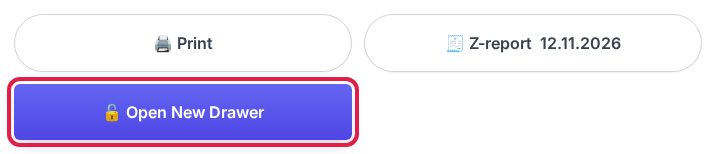
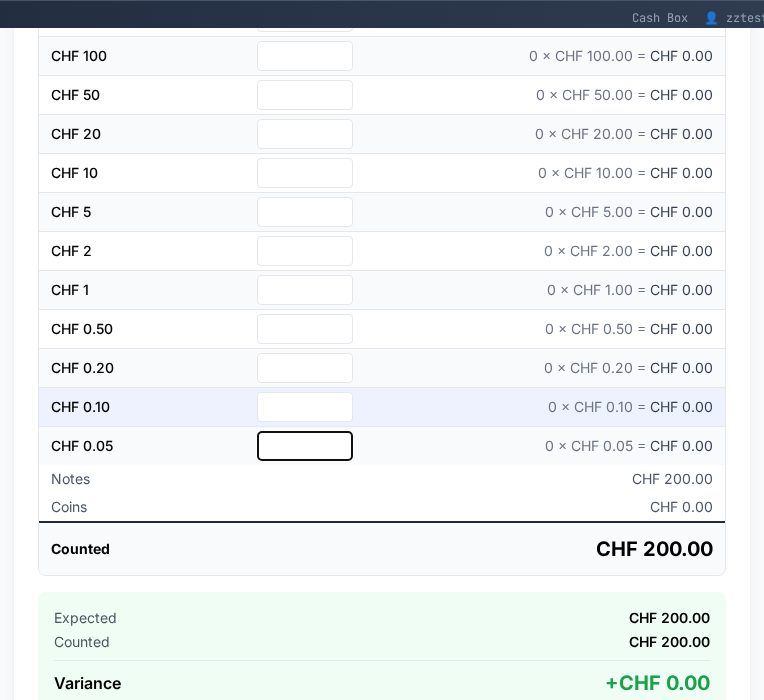
A closed box first shows the last shift report. Scroll to the bottom and press 🔓 Open New Drawer. The count form appears.
Under Open the cash box(Kasse öffnen) choose Enter as: count (number of each coin and note) or total CHF (what each row of the coin tray is worth). The tablet remembers your choice.
Type the figures row by row.
Press 🔓 Open the cash box with CHF ….
If the screen asks "Is that right?", recount if in doubt, then Yes, that's what's in it or Let me recount.
If last night's close was out by more than the allowed difference, the screen shows Last night's reconcile. Write what you think happened, then Open the shop with this count.
Confirm the numbers. The screen now reads ● OPEN · Opened … byyour name. Check that Opening float is exactly what you counted. Wrong? Say so now, before the first sale — tell a manager or use 💬.
The 📄 X-report on this screen is a look into the box at any moment of the day. It closes nothing. It shows: Opening float (this morning's count) · Cash sales (everyone) · Card / TWINT (not in the box) · Transactions · Expected in drawer now = float + cash sales + paid in − paid out − cash refunds. ↻ Refresh updates the figures. 🖨️ Print X-report prints it — use it at a handover: the one leaving and the one taking over both sign it. "There is no shift report to print yet" is normal while the box is open; the shift report comes at closing (P-06).
Done when
The Cash Box screen reads ● OPEN with your name, the Opening float matches your count, and the Dashboard card now reads Close Shift.
If it goes wrong
"The cash box is already open — … counted it in at HH:MM" — someone opened it already. Do not open it again; just sell.
"not a whole number of … — check it" in total mode — that row's value cannot be made of that coin. Recount the row.
"Is that right?" appears when today's count is more than 50% away from last night's. It only asks; it never refuses.
P-02
Sell — scan, search, add to cart
Day🤖 Walked
Why
Every sale on the till replaces a line in the paper day book and lands on the Z-report by itself. Scanning is the fast and the correct way: it picks the exact product and price.
Build b1358 · red outline = what to tap · tap the picture to see the whole screen
Steps
Scan each item with the gun. It goes straight into the cart.
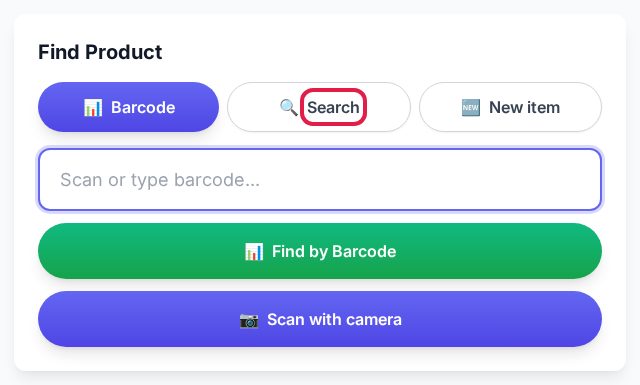
No barcode, or it will not scan? Tap 🔍 Search and type at least two letters of the name. The products appear underneath. Too many? Pick a category to narrow the list (All categories ▾).
Not sure it is the right one? Click the product for its details. On the laptop, hold the mouse over the picture to see it bigger.
Press Add next to the right product.
Next item: carry on searching, switch back to 📊 Barcode and scan, or use 🆕 New item for something with no code (P-03).
Check the cart before you take money: every line, the quantity (change it with − / + on the line), and the Subtotal.
Watch the deals: three papers on a "3 for …" deal show under 🏷️ Deals in this basket with what the customer saved. Ring the 3rd one and the price drops by itself.
Below the subtotal: % Discount and Target Total. Leave them at 0 unless a manager says otherwise (P-05).
Press Checkout to take payment (P-05). Clear empties the whole cart — only for starting again.
Done when
Every item is in the cart with the right quantity and the subtotal matches what is on the counter. Then Checkout.
A product scans as the wrong product — sell the right one by Search, then tell a manager with 💬 (P-17). A wrong barcode on a product is worse than a missing one.
P-03
An item with no barcode, or a barcode Banco doesn't know
Day🤖 Walked
Why
The customer must never wait for the catalogue. A department key sells the item at the right price and VAT group in seconds, and the scanned code is kept so a manager can add the product properly later.
Who
Everyone.
When
The gun reads the barcode fine, but no product in Banco has that code yet — the till says 🔍 Not found — pick a department(Nicht gefunden — Abteilung wählen). Or the item has no barcode at all. (The gun beeps and nothing happens at all? That is the gun, not this card — check it is switched on and paired.)
Where
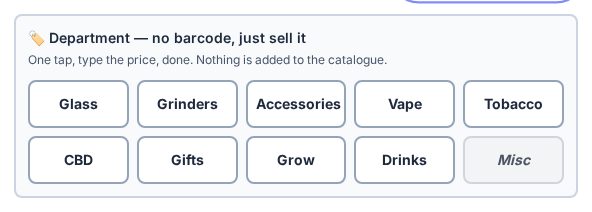
Scan screen → tab 🆕 New item → Department — no barcode, just sell it(Abteilung — kein Strichcode, einfach verkaufen).banco.wolfhold.app/pos/scan ↗
Looks like
Build b1358 · red outline = what to tap · tap the picture to see the whole screen
Steps
Scan. Banco does not know the code: an amber strip says 🔍 Not found — pick a department with the number under it. Banco keeps looking by itself (our catalogue, the suppliers' lists). If a supplier knows the code, an offer appears below — check it against the packet; if it matches, take it.
Nothing offered? Choose one of three:
Everyday case — a department key. Tap the department straight away (Glass · Grinders · Accessories · Vape · Tobacco · CBD · Gifts · Grow · Drinks · Misc), type the shelf price and quantity, Add to Cart. Do not press ignore first: the scanned code rides along on the line (📎), and a manager finds it later under 🔎 What the till couldn't find to add the product properly.
You know the item and it will sell again — use 🆕 New item — with the code you scanned on the same screen: name, price, a photo if you have a second → ➕ Create & add to cart. It is saved under "On the fly" for a manager to tidy.
The code itself is wrong — a box barcode, a QR code, you scanned the wrong thing → press ignore (or ✕ in the New item box). The code is thrown away; then sell the item as above.
From CHF 200 a department line asks for a second tap: ⚠️ Confirm. On the tablet you may need to scroll a little to see Add to Cart.
Carry on with the sale.
Done when
The line is in the cart. If you scanned a code first, the line shows "📎 the scanned code is attached", and the code now appears on 🔎 What the till couldn't find for the manager.
If it goes wrong
Do not invent a product mid-sale if you are unsure what it is. A department key is always correct; a half-made product stays in the catalogue for ever.
You can create a real product on the spot (…or create a real product instead → Create & add to cart) — only when you know its name and price for certain. It lands under "On the fly" for a manager to finish.
Tabak, Vape and CBD lines trigger the 18+ check (P-04).
P-04
The 18+ check
Day🤖 Walked
Why
Selling tobacco, nicotine, alcohol or CBD to someone under 18 is against the law. Banco will not complete the sale until somebody has answered the question, and it records the answer — so the shop can show that every sale was checked.
Who
Whoever is at the till. The till asks; the person decides.
When
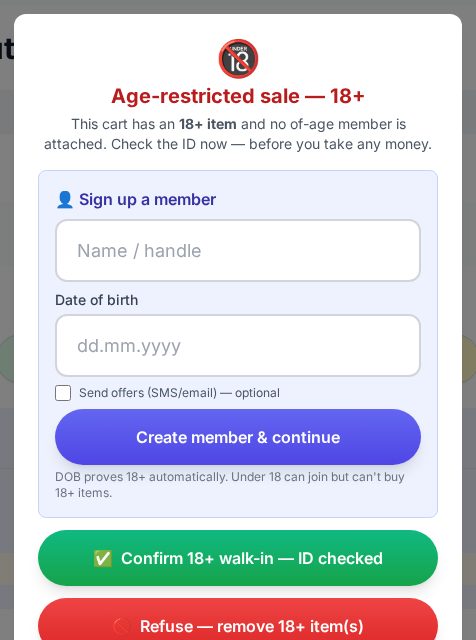
When you press Checkout on a cart with an age-restricted item, the box Age-restricted sale — 18+(Altersbeschränkter Verkauf — 18+) opens straight away — before you take any money. Answer it first, then take payment (P-05). That way a refusal never comes after the card has been charged.
Build b1358 · red outline = what to tap · tap the picture to see the whole screen
Steps
Ask for ID if there is any doubt. Look at the date of birth.
Over 18: ✅ Confirm 18+ walk-in — ID checked.
A regular who wants to join: Sign up a member with the full date of birth → Create member & continue. Next time the check is automatic. Other ways to sign someone up: P-21.
Not proven: 🚫 Refuse — remove 18+ item(s) and pick the reason: No ID shown · Refused to show ID · Clearly under 18. The rest of the basket can still be sold.
Item was simply rung by mistake: press 🚫 Refuse, then ↩︎ Just taking it off — not a refusal under the reasons. Nothing is recorded.
Done when
The sale completes, or the 18+ items are off the cart with a reason.
If it goes wrong
A member whose saved birthday says under 18 cannot be overridden. That is deliberate.
Every check and refusal can be printed: Dashboard → 18+ Record.
P-05
Take payment — cash, card, TWINT, discount, treat
Day⏳ Waiting on a decision
Why
The payment method decides where the money is: cash goes in the box and must match at closing; card and TWINT go to the bank. Choosing the wrong method makes the evening count wrong.
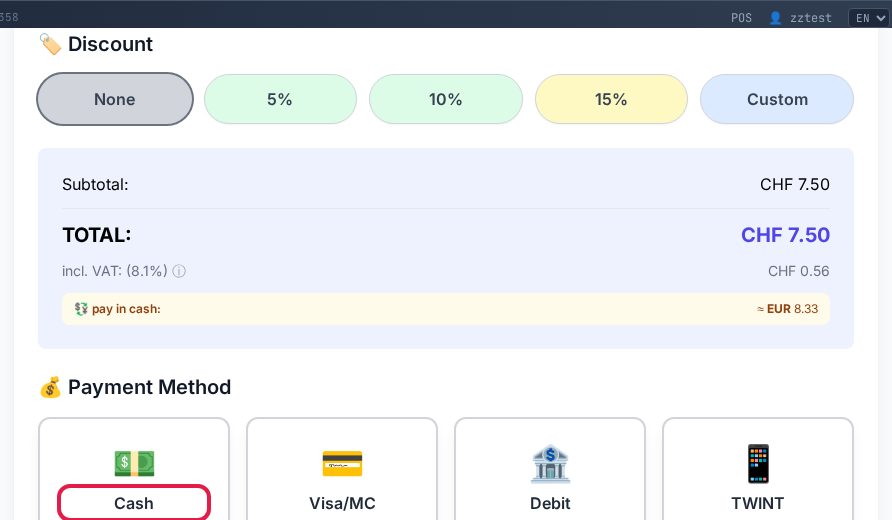
Build b1358 · red outline = what to tap · tap the picture to see the whole screen
Steps
The order is the rule: the money first, then Banco. Never press Confirm for money you do not have yet.
Press Checkout. If the cart has an 18+ item, the 18+ box opens now — answer it first (P-04).
Cash: take the money and count it. Tap 💵 Cash, type what the customer handed over under Cash Received (or tap the note buttons / EXACT) → ✅ Confirm & Complete(Bestätigen & abschliessen). Give the change the till shows. Leave the customer's note on top of the drawer until the change is given, then put it away.
Card / TWINT: run the payment on the card terminal first. Wait until it says APPROVED and the slip is out. Only then tap 💳 Visa/MC · 🏦 Debit · 📱 TWINT → ✅ Confirm & Complete. On the training system a pretend card terminal (AXIUM) pops up after Confirm — press Tap card. That is practice only.
One method per sale.
Done when
The receipt screen shows; the cash is in the drawer, or the terminal slip is out.
If it goes wrong
Cash total ends in 1–4 Rappen less or more than the items: correct. Cash rounds to the nearest 5 Rappen (Rounding (5 Rp.)); card and TWINT pay the exact amount.
"The cash box is closed. Count it open before taking cash." — do P-01 first. Card and TWINT still work.
"Cash received is … short" — the amount typed is less than the total.
Paid in euros: possible, change is given in CHF.
In the shop, Banco does not talk to the card terminal yet. Terminal declines → do not confirm in Banco. Try again, or ask for another way to pay.
✅ Discount — decided 17.11.2026 (Raphi; Felix has the last word). A cashier may give up to 20%, a manager up to 50%, an admin any amount — the limits are an admin setting in ⚙️ Settings. Tobacco and alcohol never take a discount, and an item already on a deal (e.g. 3 for CHF 10) keeps its deal price — the cart says so under the discount line.
Treat: once Cash is chosen, 🍭 Give a Treat → Pick a treat — on the house rings an item from the Treats category at 0.00. It shows on the Z as 🎁 Treats given.
⏳ Open — card terminal (S1). Whether Worldline is connected on day one or later is Felix's decision. Until then, steps 3–4 above are the process.
P-06
Close the day — count out, close the box, Z-report
Day🤖 Walked
Why
The evening count proves the box holds what the day's sales say it should. What you count tonight becomes tomorrow's starting point — so an honest count, with a note when it is off, keeps every following day right.
Who
Anyone with a login. The person closing counts for everyone who sold today.
Build b1358 · red outline = what to tap · tap the picture to see the whole screen
Steps
Count the drawer, coin tray as in the morning.
Under Reconcile — count the box out(Kassensturz — Kasse auszählen) enter the count. Unlike the morning, the screen shows what it expects — count first anyway.
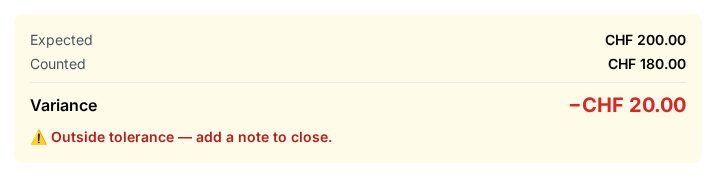
Read the line under it: "✅ Within tolerance — good to close", or "⚠️ Outside tolerance — add a note to close" → write what happened (P-09).
Money to the safe tonight? Under Taking some to the safe? type the amount in the To the safe box.
Press 🔒 Close Drawer & File Report(Kasse abschliessen & Bericht ablegen). Print the Shift Report if Felix wants paper.
Open ⏰ Store Z-Report, check the day's totals, 🖨️ Print Z-Report.
Done when
The Shift Report is filed, the Dashboard card reads Open Shift again, and the Z-report for today is printed or saved.
If it goes wrong
The Z-report closes nothing. Only the Cash Box closes the box. The Z page says so and has a 💰 Go to the Cash Box button.
Forgot the safe? After closing, on the Shift Report: To the safe for this close → type it → Save. Only until the box is opened again.
Box cannot be counted at all (keys lost, emergency)? An admin can Close without counting with a reason — a cashier or manager does not see the button. The report then says "Nobody counted this box". Exception only.
💶 Money
P-07 – P-09 · as it happens
P-07
Cash in / out that is not a sale, and the safe
Money🤖 Walked
Why
Every franc that enters or leaves the drawer without a sale — stamps from petty cash, change from the bank, money to the safe — must be recorded, or the evening count is short or over by exactly that amount and nobody remembers why.
Who
Everyone.
When
The moment the money moves. Not at the end of the day from memory. Only while the box is open: once the evening close is done, the Cash in / out card is gone from the screen.
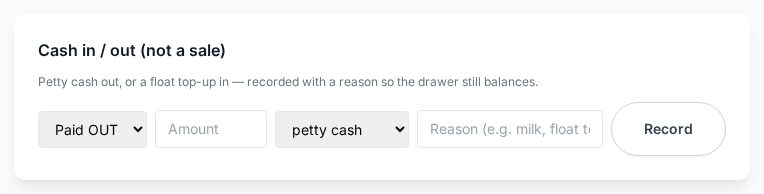
Build b1358 · red outline = what to tap · tap the picture to see the whole screen
Steps
In the first drop-down choose Paid OUT(Auszahlung) or Paid IN(Einzahlung).
Type the amount.
In the second drop-down pick the reason: petty cash · to the safe · float top-up · change order · other.
A few words in the Reason box help (e.g. stamps). Required only for other. Press Record(Erfassen).
Done when
"Recorded — CHF … out of the box" (or into). The 📄 X-report shows it.
If it goes wrong
No Cash in / out card, or "The cash box is closed — nothing to adjust." — the box is closed. Money to the safe after closing: on the Shift Report, To the safe for this close (P-06). Anything else: record it after the next opening (P-01) and write in the Reason when it really happened.
"To the safe" must be Paid OUT; it is money leaving the box. Banco does not track what is in the safe itself.
Money to the safe at the end of the day is easier inside the close (P-06 step 4).
P-08
A customer brings something back (refund)
Money🤖 Walked
Why
A refund is a new record dated today with its own slip number (RET-…). The original sale is never changed, so a day that is already closed and signed stays exactly as it was. The cash comes out of today's box, so today's count stays right.
Who
Manager or admin only. A cashier has no Refund tile at all — she calls a manager. Returns are rare at Artemis, so this is fine.
When
A customer returns an item. Whether to accept it is shop policy — see returns-and-swaps-policy, for Felix to sign.
Build b1358 · red outline = what to tap · tap the picture to see the whole screen
Steps
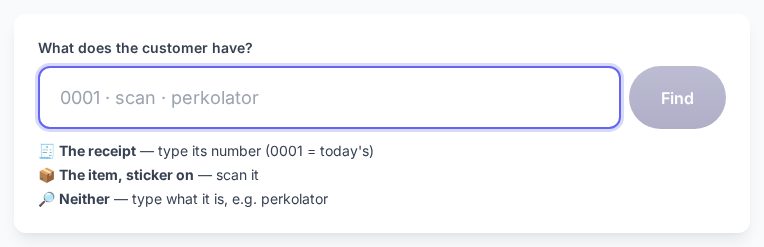
Box must be open. Under What does the customer have? type one of: the receipt number (a short number like 0001 = today; an older one needs the full TXN-YYYYMMDD-NNNN), scan the item, or type the product name. Press Find.
Scanning or typing a name lists the sales of that item in the last 90 days, with date, who sold it, and what was paid. Pick the right one.
No matching sale? None of these? Pay back the shelf price.
The quantity starts at 0. Press + for each item coming back — only then do the reasons and the refund button appear. Pick why: Defective · Wrong item · Changed their mind · Other.
Press ↩️ Refund CHF …, read the amount, then ✅ Confirm refund.
Give the customer the amount shown. Tap 🖨️ Return slip, have the customer sign it, keep it.
Done when
The screen shows "Give the customer CHF …", the RET- number, and the box expected figure has gone down by the refund.
If it goes wrong
Refunds are cash only, out of the open box. Nothing goes back into stock automatically.
"… 2 asked, 1 left to refund" — that sale has already been refunded in part.
The slip does not print by itself; you must tap 🖨️ Return slip.
P-09
The box does not match the count
Money🤖 Walked
Why
A difference that is explained is not a problem. One that nobody wrote down costs someone an evening, and lands on whoever closed. The note protects the person who counted.
Who
The person closing writes the note. Felix and the managers read it.
When
At closing, when the screen says "⚠️ Outside tolerance — add a note to close."
Build b1358 · red outline = what to tap · tap the picture to see the whole screen
Steps
Recount once. Most differences are a counting slip.
Still off: check for a cash in/out that was not recorded (P-07), a card sale tapped as cash, or a refund.
Write what you think happened in What happened?, e.g. "gave CHF 10 too much change once", or "don't know" — that is allowed.
Close as normal.
Done when
The Shift Report shows "⚠️ Variance flagged — see note" with your note.
If it goes wrong
"Off by CHF … Add a note to reconcile the cash box." — the note is missing.
The allowed difference (default CHF 0.20) is set by an admin in ⚙️ Settings → tab 🏷️ Discounts → section 💰 The cash box → Difference allowed without a note. A change counts from the next opening.
Next morning, whoever opens sees last night's difference and can add to the note (P-01 step 6).
📦 Goods
P-10 – P-13 · managers, weekly or on delivery
Selling only needs two seconds a customer because this work was done beforehand. A cashier should never have to ask "is it this one?" mid-sale. When that happens, the answer is more of this section.
P-10
A delivery arrives (Receiving)
Goods🤖 Walked
Why
New goods must be in the catalogue with their barcode before they reach the shelf, or the first customer who buys one is a "not found" at the till.
Who
Manager or admin.
When
When a delivery is unpacked, with the delivery note in hand.
Build b1358 · red outline = what to tap · tap the picture to see the whole screen
Steps
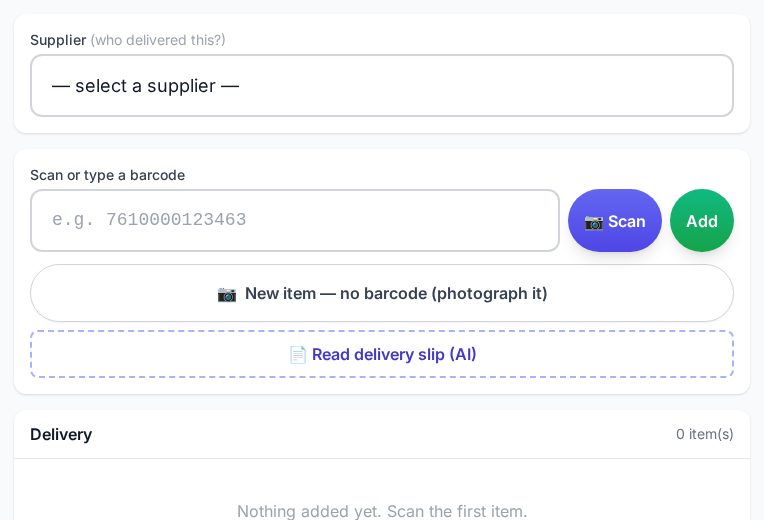
Pick the supplier (or ➕ Add new supplier…).
Scan each new item. Known items are added; an unknown code opens 🆕 New item → fill in → ➕ Add to delivery.
An item with no barcode: New item — no barcode (photograph it).
Optional: delivery note number.
Press ✅ Receive N item(s).
Done when
"✅ Catalogued", and each item now scans at the till. New items are queued for labels (P-13).
If it goes wrong
Receiving does not count stock — each line is one entry. Artemis does not keep stock counts in Banco.
"Barcode … already belongs to …" — stop. Banco never moves a barcode by itself: one code on two products means one of them is wrong. Fix it before either is sold — see the box below.
Two products, one mistake — which fix? Catalog → open the product.
The same product twice (two rows for one packet) → 🔗 Duplicate of… → pick the one to keep. It keeps the barcode and the sales history; the other is switched off.
Made by mistake, never sold (wrong copy-paste, a half-made item) → 🔥 Delete permanently and start again. The button is only there when the item has no sales.
Already sold → 🗑️ Discontinue. It cannot be deleted; its sales must stay on the records.
The barcode sits on the wrong product → open the wrong one, clear its barcode, save. Then put the code on the right one. A barcode is never overwritten.
P-11
Make a shelf scannable (Shelf Intake)
Goods🤖 Walked
Why
Most products are already in the catalogue but their barcode is not. Shelf Intake scans a shelf, shows which packets the till does not know yet, and lets you attach each code to the right product with the packet in your hand.
Who
Manager or admin.
When
Weekly, one shelf section at a time (10–15 facings, not 300 items).
Build b1358 · red outline = what to tap · tap the picture to see the whole screen
Steps
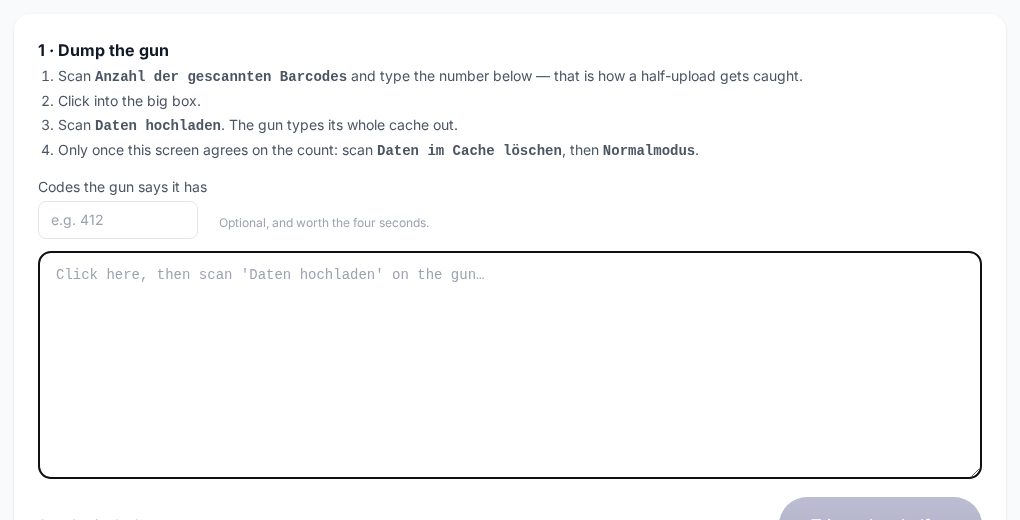
Netum gun in inventory mode (its booklet). Scan the section.
1 · Dump the gun: scan Anzahl der gescannten Barcodes, type the count, click the box, scan Daten hochladen → Triage the shelf →.
The tiles show: already scannable · unfinished · still unknown.
For each unknown, in batches of ten: type what you see on the packet → Check catalogue → That's it.
Nothing matches? Paste the product's web page → Read → accept or None of these — create it new.
Unsure? Skip.
Afterwards, scan the same packets once more at the till: each should ring up the right product.
Done when
Every packet on that section scans at the till as the right product.
If it goes wrong
A wrong barcode looks exactly like a right one. Only a re-scan with the packet in hand tells them apart. When unsure, skip — a missing barcode is better than a wrong one.
Progress is saved in that browser only. Finish a batch on the device you started it on.
Shelf Intake does not queue labels.
Attached a code to the wrong product, or made a product by mistake? Do not start over by overwriting — the right fix depends on whether it has been sold: P-10, box Two products, one mistake.
P-12
A price is wrong or missing
Goods🤖 Walked
Why
Price changes affect every future sale, so only managers may change an existing price. A product with no price yet is a gap that anyone may fill once, so the customer is not kept waiting.
Who
Missing price (999.99): anyone, once. Wrong price: manager or admin.
When
At the till, when a product shows CHF 999.99 or a price that does not match the shelf.
Where
Scan screen. For an item already in the cart: tap its line (tap for details →) to open the product card.banco.wolfhold.app/pos/scan ↗
Steps
999.99 — no price yet. A cashier sees "💰 This item has no price yet" → type the shelf price → Set price & add to cart. A manager sees "✏️ Manager price fix" → type it → Save & keep selling. Ignore the big green Add to Cart and the "Product added!" message above it — the item is not in the cart until the price is set.
Wrong price, manager logged in:Price looks wrong? Fix it here → type the right price → Save & keep selling.
Wrong price, cashier logged in: sell at the price shown, or take the item off and sell it with a department key at the shelf price (P-03). Put the packet aside and report it with 💬 (P-17).
Done when
The product rings up at the right price next time it is scanned.
If it goes wrong
999.99 is the "nobody knew yet" placeholder, not a fault. Banco refuses to sell at 999.99.
"⚠️ This changes the product for everyone" — that is the point. Check the shelf label first.
"Only a manager can change a price that is already set" — call a manager or use step 3.
P-13
Print labels & catalogue cards
Goods📝 Draft
Why
The shelf label is the price promise to the customer. It must match the till.
Who
Anyone can print a single label. Usually a manager after Receiving or a price change.
When
New product, changed price, or a label is missing. 📖 Catalogue card: a new grinder (or any item with no barcode of its own) that belongs in a counter catalogue binder.
Open the product, tap 🏷️ Label. It opens in a new tab.
Pick Small or Medium.
Press 🖨️ Print. Watch the status: Waiting for the printer… → Printing… → ✅ Sent to the printer.
📖 Catalogue card
The grinder binder at the counter has a card for every grinder: picture, price and a barcode the gun reads — because a grinder has no barcode of its own. A new grinder needs one new card, not a new book.
Open the product, tap 🏷️ Label, then 📖 Catalogue card. An A4 page shows ONE card in the top-left corner.
Press 🖨️ Print (A4). This goes to the A4 printer, not the Brother. Scale: 100% / actual size — never "fit to page".
Plain paper (always works): cut the card out along its grey border and tape it into a free spot in the binder.
Or a label sheet — Avery Zweckform L7161 (laser, 63.5 × 46.6 mm, 18 per A4). The card prints on position 1, top left only. For the next card, peel a spare label and stick it on position 1, then press all 4 corners down firmly before it goes into the printer.
Scan the card's stripes with the gun once — the product must land in the cart. Then 🗑️ Clear.
🛒 What to order — exactly this: Avery Zweckform QuickPEEL™ Address Labels, JamFREE™ print — product code L7161-40. 63.5 × 46.6 mm, white, laser, A4 — 40 sheets = 720 labels (one label per new card, so a pack lasts years). The bigger L7161-100 is the same label. Not removable labels, not inkjet labels, not another size — the card is placed for exactly this sheet, and any other size lands in the wrong place.
Done when
The label is out of the Brother printer and on the shelf. Catalogue card: it is in the binder and the gun sells it.
If it goes wrong
First label after the printer wakes takes 25–30 seconds. That is calibration.
A dead label printer never stops a sale. Keep selling; print later.
Catalogue card: the gun reads the stripes, not the QR — the QR is for a customer's phone.
Catalogue card off its label by a few mm? Check the print scale is 100%. Still off: plain paper and tape, and tell Angel.
A moved label lifted or jammed once? Use plain paper from then on.
Not yet proven: the "print all queued labels" page (🖨️ Print labels (N)) prints through the browser, and the label printer may not accept that. Use single labels until Angel has tested it.
👥 People & admin
P-14 – P-19 · P-21 – P-22
P-14
A new person starts — staff card and login
People🤖 Walked
Why
Every sale records who rang it. One login per person, never shared, means a short till is never a group accusation — the record shows who was selling.
Who
Admin only — the Staff tab is hidden from managers.
Fill every field marked *: first and last name, AHV number, date of birth (dd.mm.yyyy), email, street, postal code, city. Phone is optional.
✅ Save new employee.
On the card: type a Till login (username) — the button changes from 🔗 Link to 🔑 Create sign-in — and a Password (6+ characters) → 🔑 Create sign-in.
Reload the page, then set the Role: 💰 Cashier · 👔 Manager · 👑 Admin. A new login always starts as Cashier.
Tell the person their username and password in person.
Done when
"Sign-in ready — … can log in now.", the card shows ● login linked, and the person has signed in once on the till.
If it goes wrong
"Please fill all * fields." — something required is empty.
"AHV … already belongs to …" — that person already has a card.
The username cannot be changed later. Choose it carefully (e.g. first name).
The password is not forced to change at first login. Pick one the person can keep, or let them choose it with you there.
P-15
Fix details, change a role, reset a password, someone leaves
People🤖 Walked
Why
A person who has left must not be able to sign in. And a role should match the job the person does today, nothing more.
Who
Admin only. Only an admin can make or remove another admin.
When
A new address or phone, a name spelt wrong, a promotion, a forgotten password, the last working day. And now, before go-live: every staff card complete with real data — email, AHV number, date of birth, address. It is entered on the training system now and moves to the shop's own system at the cutover, so opening day starts with nothing to type.
Fix details (name, email, phone, address): ✏️ Edit details → change what is wrong → 💾 Save changes. "… updated ✓"
Change role: pick it under Role. "Saved — active on their next login."
Reset password: type a new password on the card → press the button next to it (💾 Update / 🔑 Create sign-in). It replaces the old one.
Someone leaves: first ⛔ Switch login off, confirm the question, then 🗑️ Delete if the card should go (it asks again).
Done when
The card shows the new role, or ● login OFF.
If it goes wrong
🗑️ Delete removes only the card — the login stays ON. Always switch the login off first.
After ⛔ Switch login off, a till that person is still signed in on can keep working for a few minutes. Take the tablet back too.
You cannot switch off your own login, remove your own admin, or remove the last admin.
The owner's card is locked: "only the owner can change this card."
First exercise for every new admin: open your own card, check name, email, phone and address, fix what is wrong, save. It is the safest card to practise on. (Tuesday 17.11: Raphi does his own.)
📧 Email them a setup link sends the person a link to choose their own password. Tested 11.11.2026: the mail arrives. It needs a real email address on the card.
P-16
Who may do what
People📝 Draft
Why
Each role can do what the job needs. When a screen says "a manager does this", it is not broken — it is this table.
Who
Reference for trainers. The admin sets roles (P-15).
Can…
💰 Cashier
👔 Manager
👑 Admin
Sell, open and close the cash box, X- and Z-report
yes
yes
yes
Set a first price on a 999.99 product
yes
yes
yes
Discount (an admin setting — decided 17.11)
up to 20%
up to 50%
any
Refund
no
yes
yes
Change a price, edit products, Receiving, Shelf Intake
Staff & logins, backups (the tab is not even shown)
no
no
yes
Note
Who is what at Artemis (Wolf, 12.11.2026): Admin = Felix and one backup — Raphi for now, so he can add staff and train the admin cards. Manager = the people who run the shop and the products — Leila. Everyone else: Cashier. Felix has the last word on who is Admin. A manager changing a money setting is silently ignored — no error, nothing saved. Closing without counting and the cash box settings became admin-only on 11.11.2026 (build b1352).
P-17
Report a problem (💬)
People🤖 Walked
Why
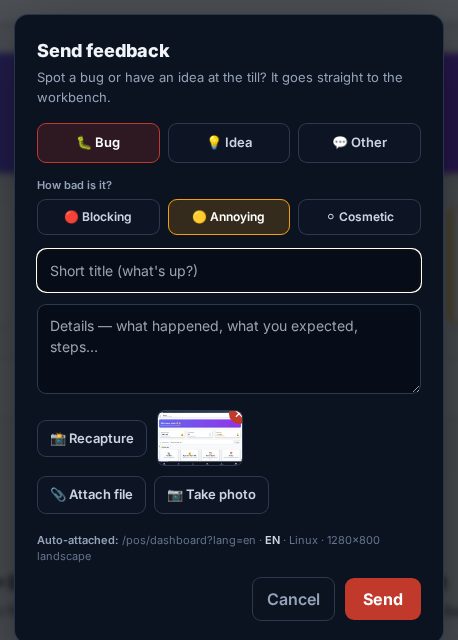
A problem told in passing is forgotten by evening. A 💬 report carries a picture of the screen, which page, which device — everything needed to fix it — and you can follow what happens to it.
Who
Everyone. Report anything: a bug, a wrong product, an idea.
When
The moment you notice it, with the screen still showing the problem.
Where
The 💬 icon in the dark bar at the top of every screen. Title Send feedback(Rückmeldung senden). Your reports:banco.wolfhold.app/pos/my-tickets ↗
Looks like
Build b1358 · red outline = what to tap · tap the picture to see the whole screen
Steps
Tap 💬. A picture of the screen is taken by itself.
Pick 🐛 Bug · 💡 Idea · 💬 Other, and how bad: 🔴 Blocking · 🟡 Annoying · ⚪ Cosmetic.
Short title, then what happened. Add a photo with 📷 if it helps (e.g. the packet).
Press Send.
Done when
"Filed as BL-0NN". Follow it under View my report ↗ → 📬 Your reports. When it is fixed, answer ✓ Looks good, close it or ✗ Still not right.
If it goes wrong
The till itself is down? Then 💬 cannot work either — phone Angel.
Managers see all reports in 🎛️ Hypercare.
P-18
Internet or Banco is down
People⏳ Waiting on a decision
Why
Banco does not sell offline, on purpose: every sale must reach the server to be a legal record. When it cannot, the shop keeps selling on paper and types it in afterwards.
Who
Whoever is at the till. Tell a manager.
When
The banner "⚠ No internet — sales are paused. Your cart is safe."(Kein Internet — Verkäufe pausiert), or screens stop loading.
Where
At the counter.
Looks like
Build b1358 · red outline = what to tap · tap the picture to see the whole screen
Steps
Wait one minute. The tablet has a mobile-data line (LTE) that should take over by itself.
Still down: switch to your phone. Banco on the phone's mobile data, the yellow gun paired to it — set up on day one (P-22). Sell as normal. This works when the shop's internet is down.
Only if Banco itself is down (the phone shows an error too): put up the cash only sign and sell on paper — name + price, or scan into a text note if the gun can. Never copy barcode numbers by hand.
When Banco is back, the same day: type in the paper sales. They land on today's box and Z-report — Banco cannot back-date. Add a note in the cash box: "14:10–15:00 Banco down, 6 sales entered at 15:05".
Still down at closing time: do not close the box. Tell a manager.
Done when
Every paper sale is in Banco and the evening count closes.
If it goes wrong
No banner appears if the Wi-Fi is connected but the internet behind it is dead. Pages just fail. Treat it as down.
Phone Angel if Banco itself is unreachable for more than a few minutes. Outages so far have lasted 20 minutes to 3 hours — always the same day.
⏳ Open. The automatic switch to mobile data (step 1) has only been tested at Angel's home, not in the shop. Angel tests it in the shop before go-live. The half-page "internet down" card for the counter (OFF2) is still to be written. The phone and the yellow gun were tested together on 28.09.2026.
P-19
The backup light is red
People🤖 Walked
Why
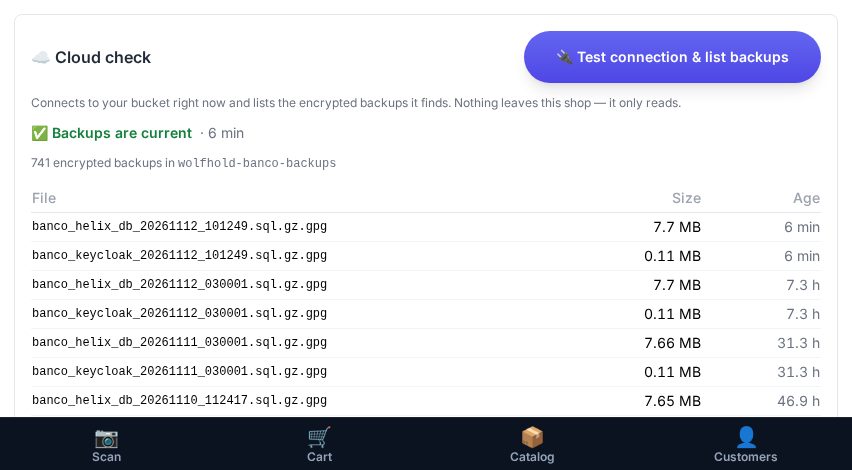
Every night the whole shop — sales, catalogue, logins, photos — is copied, encrypted, to a separate storage company. If the server were lost, the shop is rebuilt from that copy. A red light means last night's copy may be missing.
Who
Admin only. Cashiers and managers do not see the 🛟 Backup tab at all — on purpose: there is nothing on it they could act on. Admin looks; Angel fixes.
When
Once a week is enough, or whenever you are curious.
Build b1358 · red outline = what to tap · tap the picture to see the whole screen
Steps
Press Test connection & list backups.
Green — "✅ Backups are current": nothing to do.
Yellow or red — "getting old", "STALE", "No backups found", or an error: tap 💬, choose 🔴 Blocking, send. Then phone Angel.
Done when
The page reads ✅ Backups are current.
If it goes wrong
Nothing on this page can be fixed from the shop. Never try a restore.
Selling is not affected by a red backup light.
P-21
Sign up a member
People📝 Draft
Why
A member with a date of birth on file passes the 18+ check by themselves — no question at the till next time (P-04). Optional for the shop: many customers will never join, and that is fine.
Who
Everyone.
When
A regular asks to join, or the 18+ box comes up for someone who would rather sign up than show ID every time.
At the Customers screen (the usual way): search the name first — maybe they are already there. Not found → ➕ Add new member → name, email or phone if they want offers, Date of birth → tick "I confirm this member is 18 or older" → ✅ Create Profile. The date of birth is optional here and the tick is enough for someone who is obviously an adult. With the date on file, the 18+ check is automatic; without it, the till still asks.
Inside the 18+ box at checkout:Sign up a member → the full date of birth is required → Create member & continue. The sale carries on.
The customer signs up at the kiosk (if the shop runs one): they get a shop number like ART-XB12. The first time they buy an 18+ item, check their ID at the till — a self sign-up never clears 18+ on its own.
Mid-sale, you can step out to 👤 Customers to set up a member and come back — the cart waits.
Done when
The member shows up when you search their name.
If it goes wrong
Exact date or just the year? The year settles everyone except those who turn 18 this year — for them, type the exact date from the ID.
"That is not a real date." — type it as dd.mm.yyyy.
P-22
Day one: Banco on your phone
People📝 Draft
Why
When the shop's internet goes down, your phone on mobile data is the till (P-18). Setting it up during an outage, with a customer waiting, is too late — do it on your first day.
Who
Everyone who sells. A trainer sits with you.
When
Your first day, once — after your login works on the tablet (P-14).
Open the address above in the browser and sign in with your own username and password.
Put Banco on the home screen. Android, Chrome: ⋮ → Add to Home screen. iPhone, Safari: Share → Add to Home Screen.
Pair the yellow Bluetooth gun: Bluetooth on, gun switched on next to the phone. It pairs by itself.
Open Scan and scan one packet. It must ring up in the cart. Then empty the cart with Clear.
Done when
The Banco icon on your home screen opens the till signed in, and a scanned packet lands in the cart.
If it goes wrong
The phone helps when the shop's internet is down. If Banco itself is down, the phone shows the same error — then it is paper (P-18).
The gun does not connect? Ask a manager — do not leave it for the day it is needed.
At go-live the address changes to the shop's own. The home-screen icon must be made again then.
🎓 Training
P-23 · for the trainers
P-23
Train a new person — the four hours
Training📝 Draft
Why
Machine-green is not trained. A person who has read this handbook has not been trained; a person who has done the scripted day in front of somebody has. The scorecard shows what they have read and practised — this card is how the trainer makes sure it is true.
Who
The trainer — a manager or admin (Leila, Raphi). The trainee is a new cashier.
When
The first days, before the first shift alone. A new person has about 25 training hours (three days); the till is about four of them: the cards ~2½ h, watching 30 min, the scripted day 1 h. The rest is everything else about the shop. Supervised selling is the first real shifts, with you beside them.
Where
The trainee's scorecard: their login → Dashboard → 📖 Handbook. Yours: 👥 Team on the same page. The till itself. Step 5 with the shop closed.
Steps
🪑 The folio rule. Attach the folio keyboard for training — it makes the tablet sit flat; on its own stand it wobbles at every tap. Then keep the fingers on the glass anyway: in week three the folio is pushed aside and the screen is the till. The folio is a stand, not the keyboard.
Before they come: make sure the trainee has a login (P-14). Run ⚙️ Setup → 🔧 Hardware Check with a code that has a hyphen, so you know the gun types what the till reads.
Watch (30 min). The trainee stands beside someone doing real sales and says nothing. They see how fast a normal sale is.
The six things for the wall (below), then the cards (~2½ h) — one at a time, in their scorecard: read it together, then do it at the till. They tap ☐ I can do this only after they have done it. The time on each card is a guide.
Supervised selling — their first real shifts, you beside them. Watch two things: do they use the gun, or type? Does every 18+ item get an ID check?
The scripted day (1 h), shop closed. The trainee does all of it alone, you watch, you do not prompt:
Count the close CHF 10 short: what does the screen say, what do they write (P-09)? Then correct the count and close honestly.
The internet drops (switch the Wi-Fi off): wait a minute, then the phone (P-18, P-22)
Sign it off, on paper — 🖨️ the sign-off slip (1 page, black and white, one per trainee; it lists step 5 to tick as you watch): trainee · date · trainer, under the line "Opened, sold, took money out, closed short, explained it and closed honestly — watched, and without prompting." Felix keeps the slip.
Done when
👥 Team shows the trainee ✅ with every card signed, and the paper slip from step 6 is signed. Only then are they alone with the till.
If it goes wrong
They stumble in the scripted day — back to that card, and repeat step 5 another day. Nobody is left alone with the till before step 6.
They type on the folio instead of the screen — fine for a long note or a password, not for selling.
A card is wrong, unclear, or its time is far off — tap 💬 and name it: "P-11 took 50 minutes".
📅 The month
P-20
P-20
Reports for Felix and the Treuhänder
Month⏳ Waiting on a decision
Why
The Treuhänder does the books and the VAT return from these reports. Each day's Z-report is numbered and cannot change after the day is closed, which is what makes it a record that stands up.
Who
Day Z: anyone. Week, month, quarter, year: manager or admin. Felix reads, the Treuhänder receives.
When
Daily Z at closing (P-06). Month sheet after the last day of the month. Quarter sheet for the VAT return.
Build b1358 · red outline = what to tap · tap the picture to see the whole screen
Steps
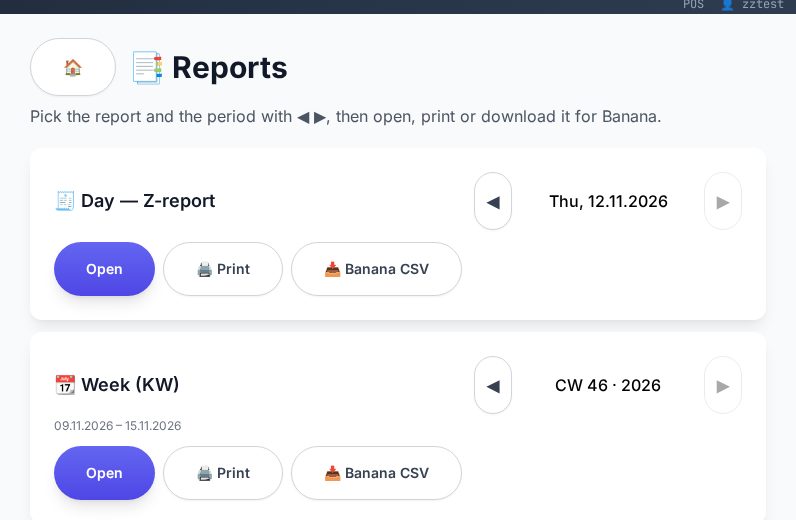
Pick the kind: Day — Z-report · Week (KW) · Month · Quarter (VAT) · Year · Cash box of a day.
Move to the period with ◀ ▶.
Open to read it, 🖨️ Print for paper, 📥 Banana CSV for the bookkeeping file.
Month: one row per day with its Z-number. Send the month sheet and its Banana CSV to the Treuhänder.
Done when
Felix has the month sheet and the Treuhänder has the sheet and CSV.
If it goes wrong
A day missing from the month? Its box was probably never closed. Check 💰 Cash Box.
⏳ Open (S2). Felix and the Treuhänder have not yet signed off the report formats — what goes in the month and quarter sheets, how a refund appears in the Banana file, which way cash is rounded. Due 30 November. Until then this is the draft process.
Six things for the wall
for every new person — the first half hour of training (P-23)
Count the drawer before you look at what Banco expects.
Cash rounds to 5 Rappen. Cards do not. The till is right.
18+ means check the ID. The screen asks; the law means it.
Not sure what it is? Use a department key. Never invent a product.
A dead label printer never stops a sale.
Something odd? Tap 💬 while it is still on the screen.